by Professor Rome | Feb 4, 2022
***UPDATE*** Google Chrome has another convenient way to help you easily reopen your last closed tab. Give it a try! Right-click on any open area of your Google Chrome web browser header.Select Reopen Closed Tab. Reopen Closed Tab Screenshot In case you missed the...
by Professor Rome | Feb 1, 2022
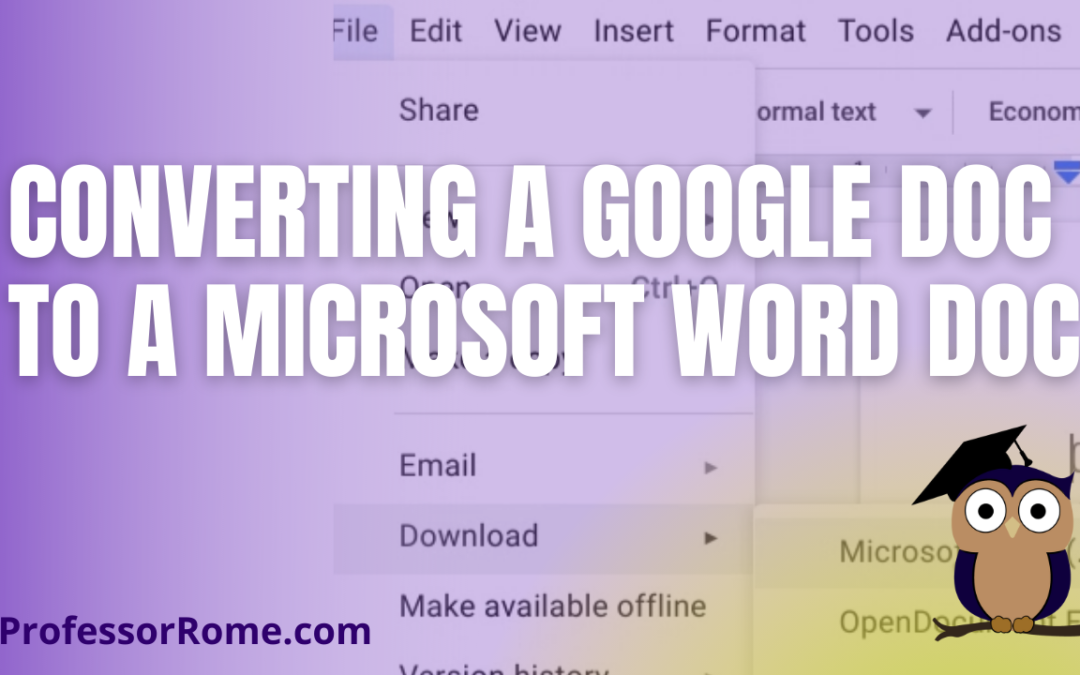
You’re using Google Docs to create newsletters, reports, proposals, meeting notes, brochures, lesson plans, or agendas. There may be a time when you will need to convert these Google Doc documents to Microsoft Word documents. With your Google Doc document open:...
by Professor Rome | Jan 27, 2022
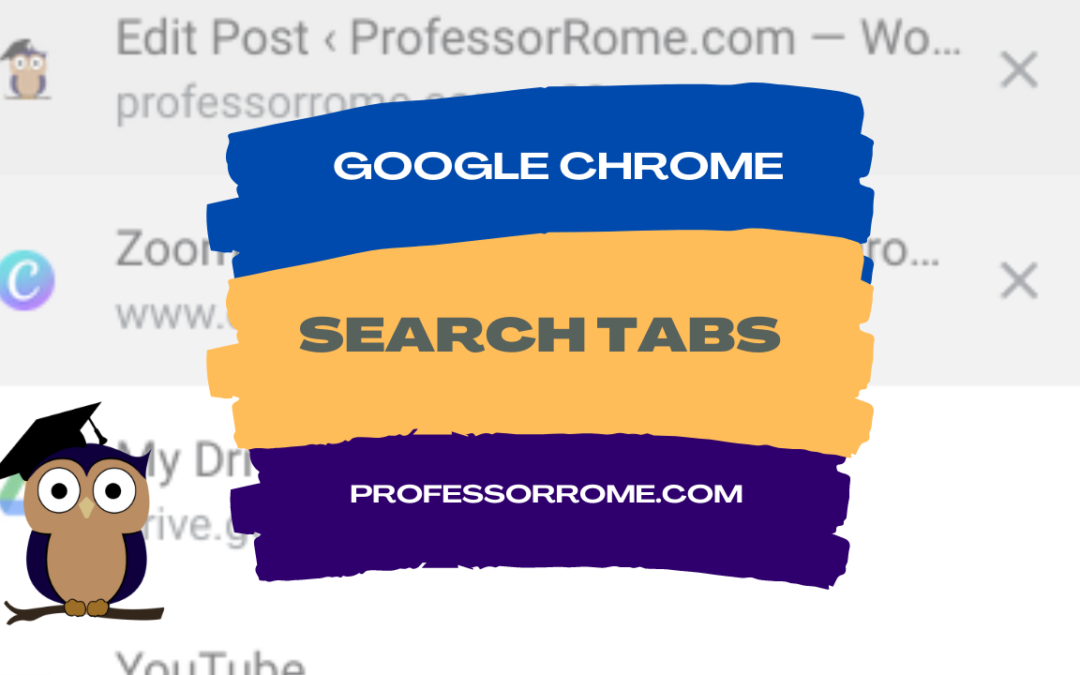
Do you have several tabs open in your Google Chrome web browser? You can use the Search Tab feature to find your tabs faster. Search Tabs Using Search Tabs Icon Click on the Search Tabs icon located in the upper right corner of your Chrome web browser.Select one of...
by Professor Rome | Jan 25, 2022
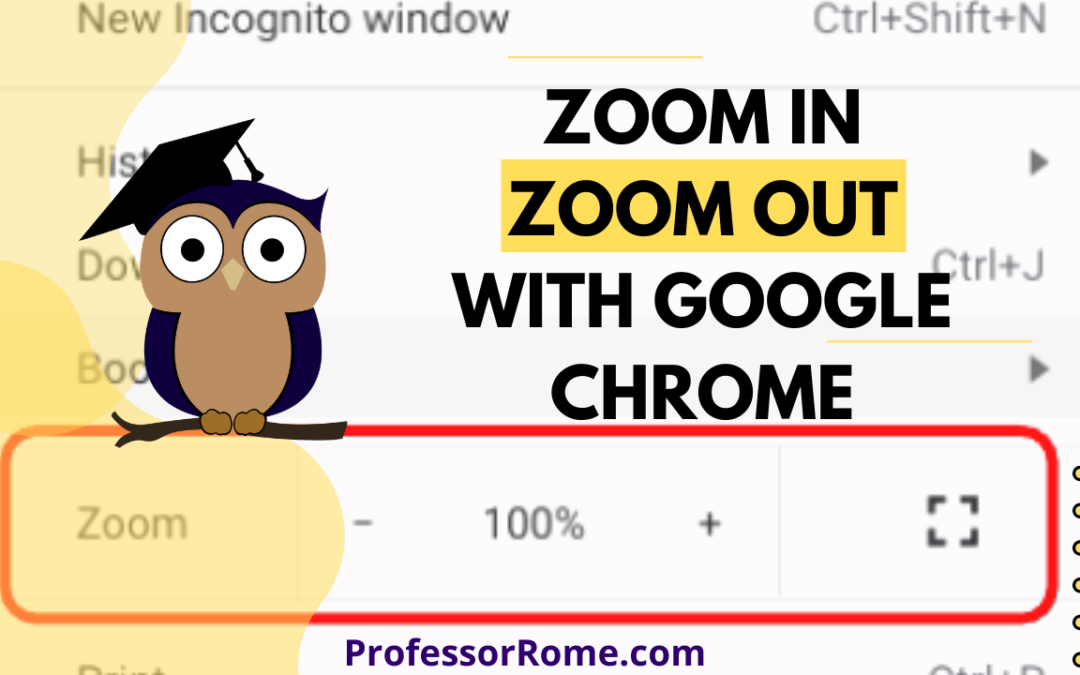
Are you having a hard time seeing the text on the Google Chrome web browser? Are you presenting information from a website on Google Meet or another video conferencing app and your participants can’t see the page? Make the text larger on the screen by using the...
by Professor Rome | Dec 6, 2021
You’re hurrying to move on to your next task and you accidentally closed a Google Chrome tab that you really needed. Darn it! All is lost. Or is it? No worries. You can quickly and easily reopen the tab you accidentally closed. Keyboard Shortcut: CTRL + SHIFT +...